- Working Hours : Monday - Friday, 10am - 06pm

WordPress Theme Troubleshooting Checklist for Beginners
- SEO Webfly
- June 06, 2026
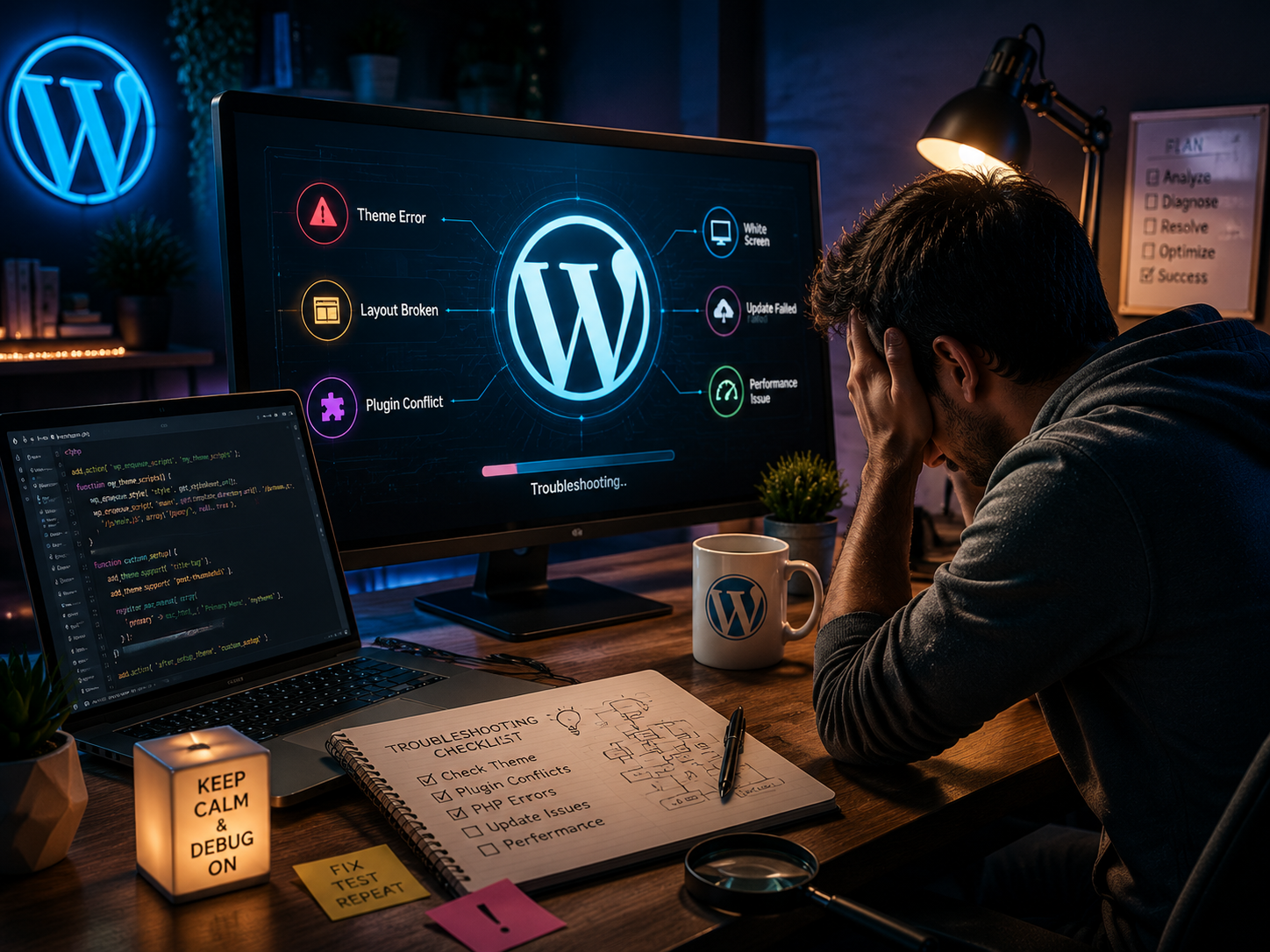
A WordPress theme plays a major role in how a website looks and functions. However even the best themes can occasionally create unexpected problems. A broken layout, slow loading pages, missing features or display errors can leave website owners frustrated and unsure of what to do next.
The good news is that most theme-related issues can be identified and resolved without advanced technical skills. Following a structuredWordPress Theme Troubleshooting checklist helps beginners diagnose problems quickly and restore their website’s performance with confidence.
Why WordPress Theme Issues Happen
Before diving into solutions it helps to understand why theme problems occur in the first place.
A WordPress theme interacts with plugins WordPress core files hosting environments and browsers. When one of these elements changes it can create compatibility issues. For example a website may work perfectly one day and suddenly display errors after a theme update or plugin installation.
Did a recent update cause the homepage to look different? Are certain design elements missing? These are common signs that troubleshooting is needed.
1. Check for Recent Changes
The first step in any WordPress Theme Troubleshooting process is identifying what changed.
Ask a few simple questions:
- Was a new plugin installed recently?
- Did WordPress receive an update?
- Was the theme updated?
- Were any custom code changes added?
For instance if a website starts displaying layout issues immediately after installing a page builder plugin the plugin could be conflicting with the theme.
Understanding the timeline often reveals the root cause much faster than randomly testing solutions.
2. Clear Website and Browser Cache
Many website owners spend hours searching for solutions when the issue is simply cached data.
A browser cache stores old versions of web pages to improve loading speed. Similarly caching plugins may continue showing outdated files even after changes have been made.
Before assuming a theme is broken clear:
- Browser cache
- Website cache
- CDN cache if applicable
This quick step solves a surprising number of visual and performance-related problems.
3. Test for Plugin Conflicts
One interesting fact about WordPress is that plugin conflicts are among the most common causes of theme issues.
A beginner-friendly approach involves temporarily deactivating all plugins and checking whether the problem disappears.
If the issue is resolved reactivate plugins one at a time until the conflict is identified.
Imagine a contact form suddenly disappears from the website. Instead of blaming the theme the actual problem could be a recently updated plugin creating compatibility issues.
4. Verify Theme Compatibility
Not every theme works seamlessly with every version of WordPress or PHP.
Outdated themes may struggle to function properly after core updates. This can result in broken features, error messages or unusual page behavior.
Website owners should always verify:
- Theme version
- WordPress version
- PHP version
Keeping these components updated significantly reduces the likelihood of compatibility problems.
5. Enable WordPress Debug Mode
When an issue remains hidden, WordPress Debug Mode can provide valuable clues.
This feature records errors, warnings and notices generated by the website. Rather than guessing what went wrong, users can identify specific files or functions causing the issue.
While beginners may not understand every technical message they can often share the error log with a developer for faster diagnosis.
6. Check Mobile Responsiveness
A theme might look perfect on a desktop computer yet perform poorly on mobile devices.
Since mobile traffic accounts for a large percentage of website visits responsiveness should always be part of the troubleshooting checklist.
Test the website on:
- Smartphones
- Tablets
- Different browsers
Are buttons difficult to click? Does text overlap images? These signs indicate that the theme may require adjustments or updates.
7. Review Custom Code and Widgets
Custom CSS snippets widgets and third-party integrations can unintentionally affect theme functionality.
If display issues appear after adding custom code temporarily remove the modifications and review the results.
Even a single misplaced character can cause unexpected layout problems.
A Smarter Approach to Theme Maintenance
Successful WordPress Theme Troubleshooting is not only about fixing problems. It is also about preventing them.
Regular backups, timely updates and careful testing before making major changes help maintain a stable website environment. Experienced website owners know that proactive maintenance often prevents hours of future troubleshooting.
Conclusion
Every website encounters challenges at some point. The difference lies in how those challenges are handled. A structured WordPress Theme Troubleshooting checklist allows beginners to approach issues logically instead of relying on trial and error.
By reviewing recent changes, checking compatibility testing plugins and monitoring performance website owners can solve many common theme problems with confidence. For those searching online for reliable guidance on WordPress Theme Troubleshooting and professional WordPress support resources it may be worth exploring SEO Webfly as a helpful destination for expert insights and website assistance.
FAQs
What is WordPress Theme Troubleshooting?
WordPress Theme Troubleshooting is the process of identifying, diagnosing and resolving issues related to a WordPress theme such as layout errors, slow performance compatibility problems or missing functionality.
How can a beginner identify a theme conflict?
A beginner can temporarily deactivate plugins and switch to a default WordPress theme. If the issue disappears the conflict is likely related to the original theme or a plugin interaction.
Why does a WordPress theme break after an update?
Updates can introduce compatibility issues between the theme WordPress core plugins or the server environment. Keeping everything updated together helps minimize these problems.
Is it safe to enable WordPress Debug Mode?
Yes. Debug Mode is safe when used properly. It helps reveal hidden errors and is especially useful during troubleshooting. However debug information should not be publicly displayed on a live website.
How often should a WordPress theme be updated?
Themes should be updated whenever the developer releases stable updates. Regular updates improve security compatibility and performance.
Recent Posts
- PPC Management Services: Grow Your Business with SEO Webfly October 10, 2026
- Google Shopping Ads Management: Strategies for Better Sales October 10, 2026
- Grow Your Business with the Best GEO Service in US October 10, 2026
- Why Dental Experts in Canada Need Professional SEO Services September 09, 2026





Let's Do Something Amazing  Together!
Ready to elevate your online presence? Get in touch with us today for personalized
solutions tailored to your business needs.
 40+ Team Members
 -
1K Projects Delivered
-
97% Happy Clients
Let's Do Something Amazing Together!
Ready to elevate your online presence? Get in touch with us today for personalized
solutions tailored to your business needs.
-
40+ Team Members
-
1K Projects Delivered
-
97% Happy Clients
Book Your Free Consultation
