• Working Hours : Monday - Friday, 10am - 06pm

How to Fix WordPress Plugin Conflicts: Step-by-Step Solutions

Picture this scenario: you activate a new plugin to enhance your website functionality and suddenly your site crashes. The admin dashboard becomes inaccessible or your theme stops displaying correctly. This nightmare happens more often than you’d think. The culprit? A wordpress plugin compatibility issue that could have been prevented with the right knowledge and approach.

What Exactly Is a WordPress Plugin Compatibility Issue?

Before diving into solutions let’s understand what causes these problems. A wordpress plugin compatibility issue occurs when two or more plugins contain conflicting code or when a plugin conflicts with your active theme or WordPress core version. Think of it like trying to run two different software programs on the same system without proper integration protocols.
Did you know that approximately 37% of WordPress users experience plugin conflicts at some point? These issues arise from various sources including outdated plugins that haven’t been updated for the latest WordPress version or plugins that use the same function names or poorly coded plugins that consume excessive server resources.
The complexity multiplies when you consider that WordPress has over 58000 plugins in its repository. With this vast ecosystem comes inevitable compatibility challenges that require systematic troubleshooting rather than guesswork.

Identifying the Culprit: Step One

The first step involves determining whether a plugin is actually causing your issue. Start by enabling WordPress debug mode by adding these lines to your wp-config.php file: define(‘WP_DEBUG’ and ‘true’); and define(‘WP_DEBUG_LOG’ and ‘true’); and define(‘WP_DEBUG_DISPLAY’ and ‘false’);
This creates a debug.log file in your wp-content directory that records errors without displaying them on your frontend. Review this log to identify which plugin is throwing errors. This targeted approach saves hours of random troubleshooting.
Another practical method involves accessing your WordPress dashboard through safe mode by temporarily disabling all plugins. Navigate to Plugins and select “Deactivate” for each one. If your site functions normally afterward you’ve confirmed a wordpress plugin compatibility issue exists.

Systematic Deactivation: Step Two

Now that you’ve confirmed a plugin conflict it’s time to identify which specific plugin causes the problem. Reactivate plugins one at a time and test your site functionality after each activation. Pay attention to when the issue reappears. This methodical approach pinpoints the problematic plugin with certainty.
Some users make the mistake of activating multiple plugins simultaneously then wondering why they can’t identify the culprit. Patience during this phase prevents future complications. Document which plugins work together harmoniously and which combinations trigger the wordpress plugin compatibility issue.

Resolving the Conflict: Step Three

Once you’ve identified the problematic plugin you have several options. First check if the plugin developer has released an updated version addressing compatibility concerns. Plugin developers regularly patch issues when they become aware of conflicts with other popular plugins or newer WordPress versions.
Visit the WordPress plugin repository and review the plugin’s documentation and support forum. Often other users have encountered the same issue and posted solutions. This community knowledge proves invaluable and frequently saves considerable troubleshooting time.
If no update exists, consider whether you truly need this particular plugin. Sometimes switching to an alternative plugin that performs similar functions without the compatibility issues proves simpler than struggling with a problematic one. Research alternative plugins thoroughly before making this decision.

Prevention Strategies: Step Four

Preventing future wordpress plugin compatibility issue occurrences requires proactive management. Establish a regular update schedule for your WordPress core and all installed plugins and your active theme. Most developers release updates addressing security vulnerabilities and compatibility improvements.
Before updating anything on your live site, create a complete backup of your database and files. Test updates on a staging environment first to catch potential conflicts before they impact your live website. This professional approach prevents emergency situations and protects your reputation.
Additionally avoid using outdated or abandoned plugins. Check the last update date in the plugin repository. If a plugin hasn’t been updated within the past six months proceed cautiously as it might be abandoned by its developer and could become incompatible with future WordPress versions.

When to Seek Professional Help

Sometimes resolving wordpress plugin compatibility issues requires expertise beyond standard troubleshooting. Complex conflicts involving custom code or multiple interconnected plugins benefit from professional intervention. Hiring experienced WordPress developers prevents costly mistakes and saves valuable time.
For comprehensive WordPress support and expert assistance with plugin conflicts and other technical challenges SEO Webfly offers professional services including plugin optimization and conflict resolution and ongoing site maintenance.

Frequently Asked Questions

1) What’s the difference between a plugin conflict and a plugin error?

A plugin conflict occurs when two plugins interfere with each other’s functionality. A plugin error means a single plugin has a coding problem. Conflicts are trickier because one plugin works fine individually but causes issues when combined with others.

2) Can plugin conflicts damage my website permanently?

Plugin conflicts typically cause temporary functionality issues rather than permanent damage. However prolonged conflicts can corrupt your database or cause performance degradation. Quick identification and resolution prevents escalation to serious problems.

3) How often should I check for plugin updates?

Security best practices recommend checking for updates weekly or enabling automatic updates for critical plugins. Major version updates should be tested on staging environments before applying to live sites to avoid introducing new wordpress plugin compatibility issue situations.

4) Is it safe to disable all plugins at once?

Yes, disabling all plugins is a standard troubleshooting technique that causes no permanent damage. Your deactivated plugins remain installed so reactivating them simply restores functionality. This method safely identifies conflicts without risk.

5) What if two essential plugins conflict with each other?

Contact both plugin developers and report the conflict. Many developers collaborate to resolve such issues. Alternatively explore if either plugin offers alternative functions or settings that can coexist peacefully with the conflicting plugin.
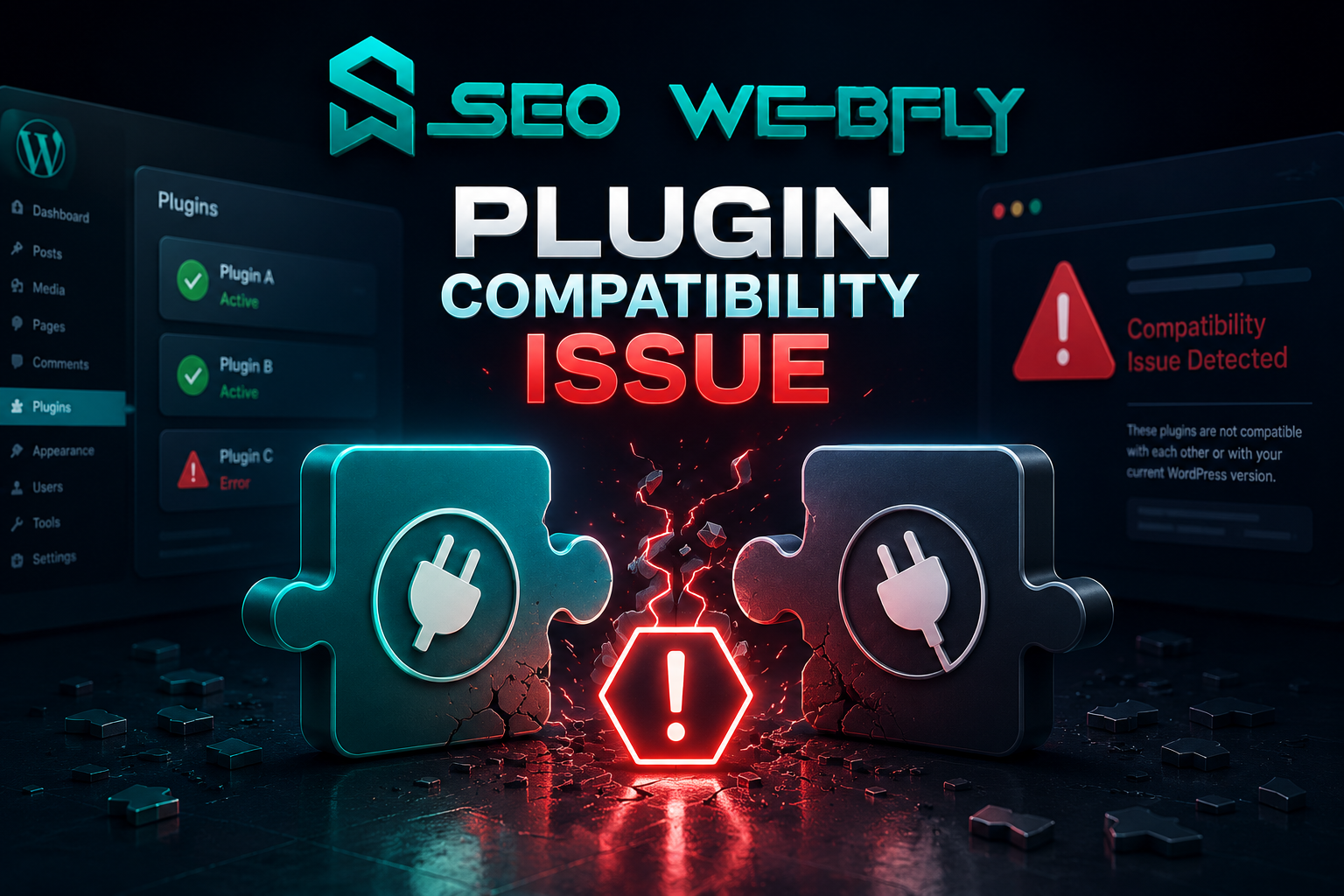
How Do I Fix WordPress Plugin And Theme Compatibility Issues?

Running a WordPress website sounds simple until a plugin update suddenly breaks the layout or a theme feature stops working overnight. One small conflict can turn a professional website into a frustrating mess. Ever opened a website and noticed missing buttons, strange fonts or a blank white screen? In many cases the reason is a wordpress plugin compatibility issue  hiding behind the scenes.

The good news is that these problems are usually fixable without rebuilding the entire website. With the right process website owners can quickly identify the issue, protect site performance and even improve security at the same time.

Why Plugin And Theme Compatibility Problems Happen

WordPress works through a combination of theme plugins and the WordPress core itself. Every component receives updates regularly. Sometimes these updates do not cooperate with each other.
For example a newly updated plugin may rely on modern PHP functions while the theme still uses outdated code. The result? Broken pages slow loading times or missing functionality. Here is something many website owners do not realize. According to industry reports WordPress powers more than 40% of websites worldwide. That popularity also makes it a major target for cyberattacks. Incompatible plugins can create weak points that hackers exploit. This is why solving a wordpress plugin compatibility issue is not only about design or functionality. It is also about security.

Start With Safe Troubleshooting

Before making any changes a complete backup is essential. Imagine trying to fix a broken website without a restore point. That situation becomes stressful very quickly.
A staging environment is another smart move. Instead of testing changes on the live website developers can safely experiment behind the scenes.

A practical troubleshooting method usually looks like this:

  • Deactivate all plugins
  • Reactivate them one by one
  • Check which plugin triggers the problem
  • Switch temporarily to a default WordPress theme
  • Identify whether the conflict comes from the plugin or the theme

This process may sound basic yet it works surprisingly well. Sometimes the issue comes from only one outdated plugin.

Keep Everything Updated But Carefully

Many people delay updates because they fear website crashes. Ironically outdated software creates even bigger risks.
Themes plugins and WordPress core files should stay updated because developers constantly release performance improvements and security patches. However updates should never happen blindly.

A safer approach includes:

  • Reading update changelogs
  • Checking plugin reviews after major updates
  • Testing updates on staging sites first
  • Removing abandoned plugins entirely

If a plugin has not received updates in years it may already be incompatible with newer WordPress versions.

Security Risks Often Hide Behind Compatibility Issues

Here is where things become more serious. A damaged plugin or broken theme can expose websites to malware infections.
For instance, vulnerable plugins sometimes allow attackers to inject malicious scripts, redirect visitors or steal login credentials. Suddenly the problem becomes bigger than appearance or performance.
This is why professional  wordpress malware removal  services are often needed after severe compatibility conflicts. Security experts not only clean infected files but also identify the original vulnerability.
Have you ever noticed strange popups appearing on a website? Or unexpected redirects to spam pages? Those are classic warning signs that malware may already exist.

Choosing Better Plugins Prevents Future Problems

Not every plugin deserves a place on a professional website. Some are poorly coded while others conflict with modern themes.

  • Frequent updates
  • High ratings
  • Strong developer support
  • Large active user bases
  • Compatibility with current WordPress versions

Quality matters more than quantity. Installing too many plugins increases the chance of conflicts. In many cases fewer plugins create faster and more secure websites.
A smart website owner asks one simple question before installing anything:
“Does this plugin genuinely improve the website or is it unnecessary?”
That one habit can prevent countless technical headaches later.

When Professional Help Makes Sense

Some compatibility problems go beyond basic troubleshooting. White screens database errors or recurring malware infections often require advanced technical expertise.Professional WordPress specialists can:

  • Detect hidden code conflicts
  • Repair corrupted files
  • Perform secure wordpress malware removal
  • Optimize plugin performance
  • Strengthen website securityMost importantly they save valuable time. Business owners should focus on growing their brand instead of spending endless hours searching through error logs.

Final Thoughts

WordPress flexibility is one of its greatest strengths yet that flexibility comes with responsibility. Themes plugins and updates must work together smoothly to maintain performance security and user trust.

Ignoring a wordpress plugin compatibility issue may lead to slow websites, broken features or even malware attacks. On the other hand proactive maintenance, smart plugin selection and timely troubleshooting can keep a website running efficiently for years.

For readers searching online for trusted guidance related to plugin conflicts, website protection or professional wordpress malware removal services the website SEO Webfly is worth exploring. It connects perfectly with the need to fix WordPress compatibility issues while maintaining a secure high-performing website.

FAQ ZONE

What is the most common WordPress compatibility problem?

Usually plugin conflicts after updates create the biggest issues. A plugin may stop working properly with a theme or newer WordPress version.

Can outdated plugins cause malware infections?

Yes. Old plugins often contain security vulnerabilities that hackers can exploit. This is why regular updates are extremely important.

How can someone know which plugin is causing the issue?

The easiest method involves disabling all plugins and enabling them individually until the problem reappears.

Is it safe to update WordPress immediately after a new release?

Testing updates on a staging website first is always safer especially for business websites with custom themes or plugins.

When should professional WordPress support be considered?

Professional help becomes valuable when websites experience repeated crashes, malware infections or advanced compatibility conflicts that basic troubleshooting cannot solve.

WordPress Plugins Compatibility Issues: Step by Step Guide

WordPress plugins are powerful tools that help websites grow smarter, faster and more profitable. From security to design to performance they extend WordPress beyond imagination. Yet every professional knows that a  wordpress plugin compatibility issue  can turn a smooth site into a frustrating puzzle. Why does a plugin suddenly break a page? Why does the website slow down after an update? These questions appear often and deserve clear answers.

This step by step guide explains plugin compatibility issues in a friendly professional way while showing how expert wordpress speed optimization support plays a key role in long term success.

Understanding WordPress Plugin Compatibility Issues

A plugin compatibility issue happens when two or more plugins fail to work well together or when a plugin conflicts with the WordPress core theme or server setup. WordPress evolves quickly and plugin developers must keep pace. Interesting fact. There are over fifty thousand plugins in the WordPress repository and not all are tested together.

Sometimes a plugin works perfectly alone yet creates errors when paired with another. Other times a WordPress update introduces new code standards that older plugins cannot follow. The result can be broken layouts, slow loading pages or even a white screen of death.

Common Signs That Indicate a Plugin Conflict

How can one tell if a compatibility issue exists. Look for warning signs. Pages may load slowly or fail to load at all. Features that once worked may stop responding. Error messages might appear in the dashboard or on the front end.

Here is a simple example. A caching plugin improves speed yet after installing a page builder plugin the layout breaks. This often points to conflicting JavaScript or CSS files. Another common case involves security plugins blocking essential scripts from other tools.

Step One Audit and Preparation

The first step is preparation. Before touching anything, always create a full website backup. This ensures safety and peace of mind. Professionals never skip this step.

Next review installed plugins. Are all of them necessary? Many websites carry unused plugins which increase risk. Fewer plugins often mean fewer conflicts and better performance.

Step Two Identify the Problem Plugin

The most effective method is plugin isolation. Deactivate all plugins and then reactivate them one by one. After each activation check the site behavior. When the issue returns the last activated plugin is likely involved.

This process may sound simple yet it reveals the truth fast. It also demonstrates why expert wordpress speed optimization supports structured testing instead of guessing.

Step Three Check Updates and Compatibility Data

Outdated plugins cause many compatibility issues. Check whether the problematic plugin supports the current WordPress version. The plugin page often shows tested versions and recent updates.

Here is an interesting insight. Plugins updated regularly are less likely to cause conflicts and often include performance improvements. Developers who maintain plugins actively respond faster to compatibility challenges.

Step Four Resolve Through Configuration or Replacement

Some conflicts can be resolved through settings adjustments. For example disabling specific scripts or enabling compatibility modes. Others require replacing the plugin entirely with a better maintained alternative.

Choosing plugins with clean code and strong reviews is essential. Quality matters more than quantity. This decision also impacts site speed, user experience and SEO.

Step Five Optimize for Speed and Stability

Compatibility issues often slow down websites. Conflicting scripts increase load time and hurt rankings. This is where  wordpress speed optimization support  becomes critical.

Professionals optimize caching image delivery database queries and script loading to ensure plugins work efficiently together. Did you know that a one second delay in page load can reduce conversions significantly. Speed is not optional. It is a competitive advantage.

Why Professional Support Makes a Difference

Handling plugin conflicts requires experience, patience and technical insight. A casual fix may hide deeper problems. Professional support ensures stability, security and performance over time.

Experts analyze server environments, PHP versions and theme architecture. They solve not just visible issues but root causes. This proactive approach saves time, money and stress.

Final Thoughts and Smart Next Steps

WordPress plugin compatibility issues are common yet manageable with the right approach. Understanding the problem following structured steps and prioritizing performance makes all the difference. Websites that invest in proper plugin management stay faster, safer and more reliable.

For readers searching for expert help with plugin conflicts and wordpress speed optimization support, a reliable resource aligned with this guide is  SEO Webfly . It connects the principles discussed here with real world solutions that keep WordPress sites running smoothly.

FAQ

What causes most WordPress plugin compatibility issues
Most issues arise from outdated plugins conflicting scripts or mismatched WordPress versions.

Can plugin conflicts affect SEO performance
Yes, slow load times and broken pages negatively impact rankings and user experience.

Is it safe to fix plugin issues without professional help
Basic issues can be tested safely with backups yet complex cases benefit from expert support.

Contact us :   

Phone no. : 91-844-833-2278   

Email :  info@seowebfly.com


Client Testimonials

Let's Do Something Amazing shape Together!

Ready to elevate your online presence? Get in touch with us today for personalized
solutions tailored to your business needs.

  • 40+ Team Members
  • 1K Projects Delivered
  • 97% Happy Clients
Book a Free Consultation