• Working Hours : Monday - Friday, 10am - 06pm

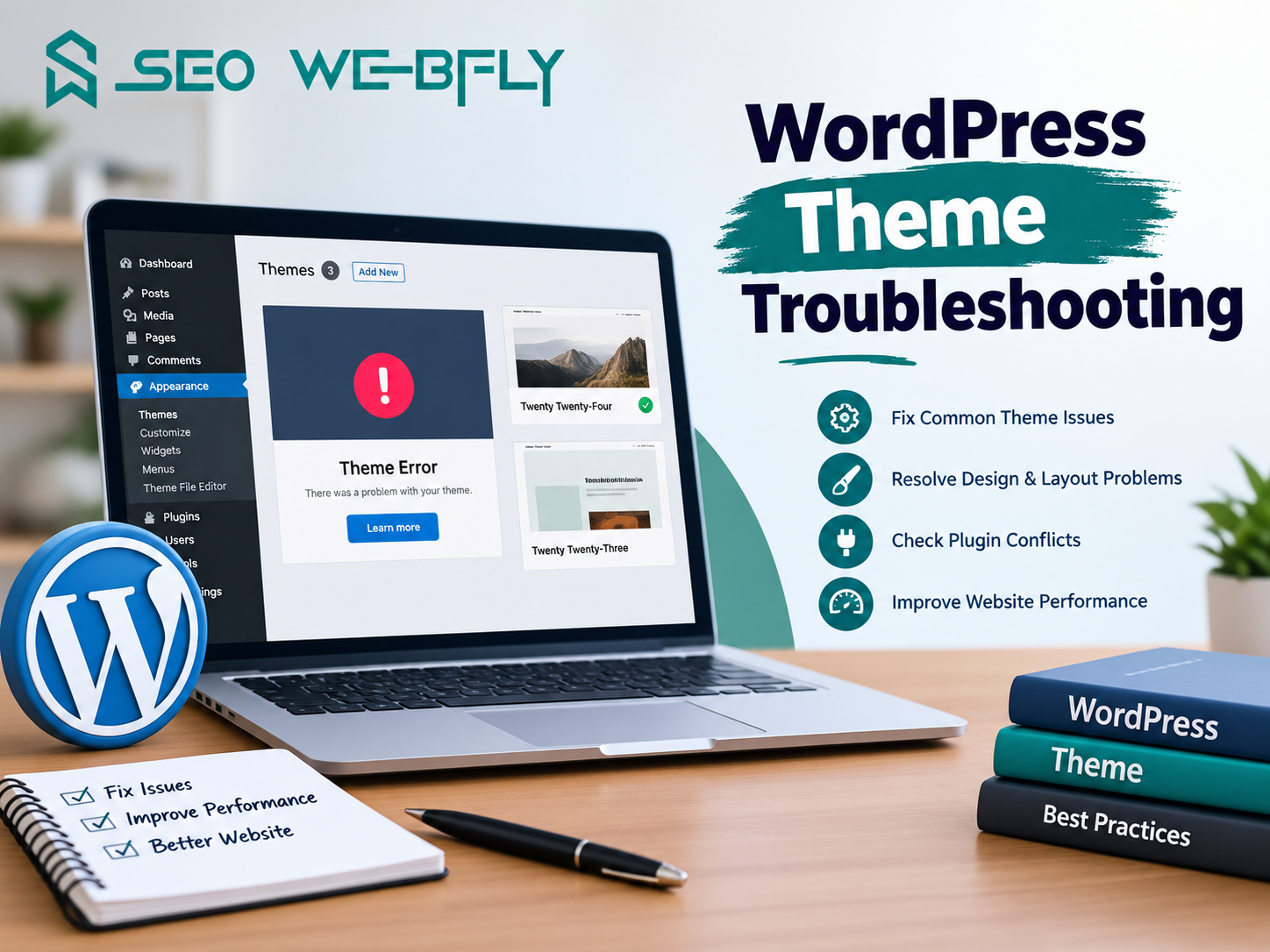
WordPress Theme Troubleshooting Checklist for Beginners

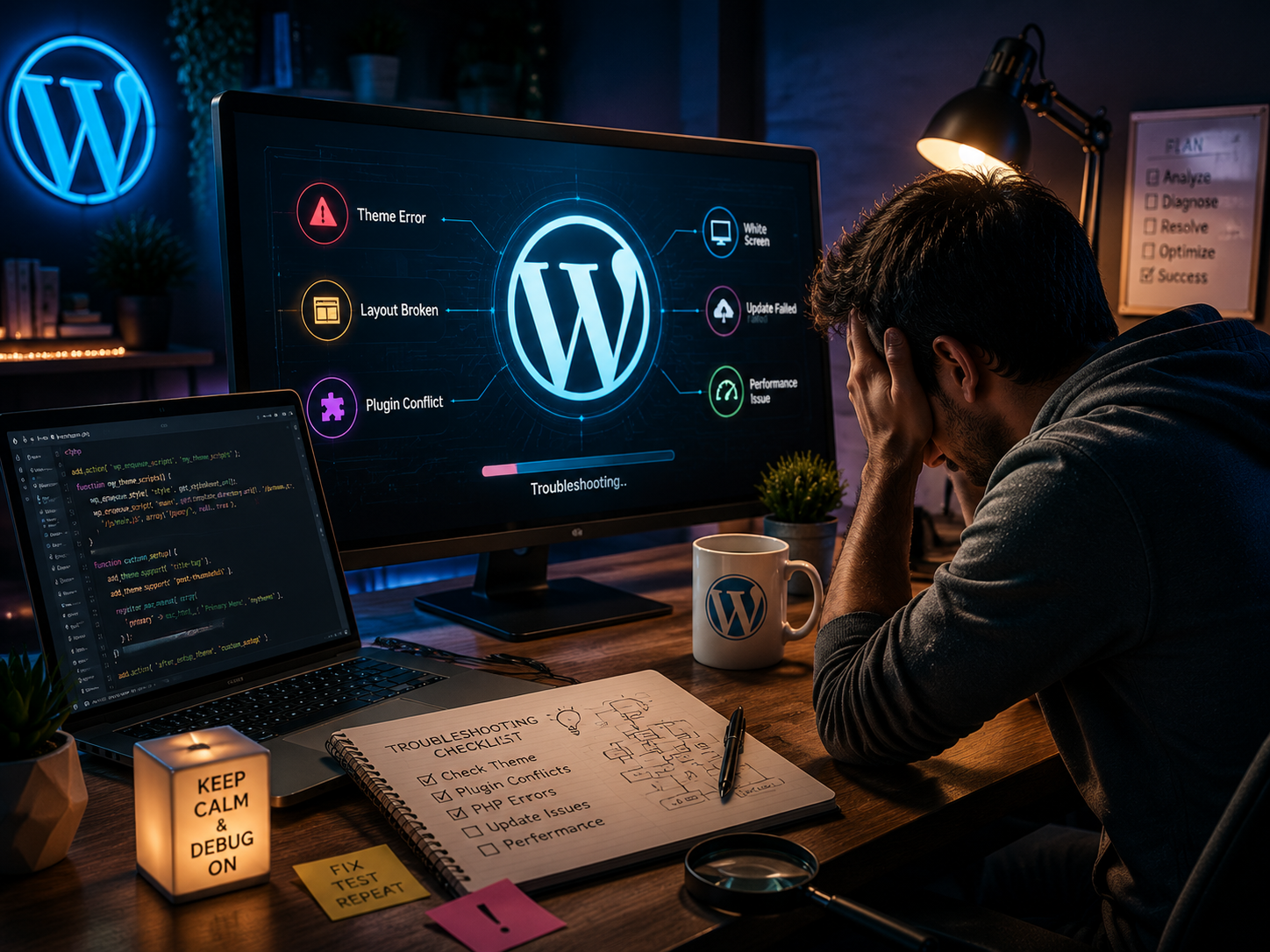
A WordPress theme plays a major role in how a website looks and functions. However even the best themes can occasionally create unexpected problems. A broken layout, slow loading pages, missing features or display errors can leave website owners frustrated and unsure of what to do next.
The good news is that most theme-related issues can be identified and resolved without advanced technical skills. Following a structuredWordPress Theme Troubleshooting checklist helps beginners diagnose problems quickly and restore their website’s performance with confidence.

Why WordPress Theme Issues Happen

Before diving into solutions it helps to understand why theme problems occur in the first place.

A WordPress theme interacts with plugins WordPress core files hosting environments and browsers. When one of these elements changes it can create compatibility issues. For example a website may work perfectly one day and suddenly display errors after a theme update or plugin installation.

Did a recent update cause the homepage to look different? Are certain design elements missing? These are common signs that troubleshooting is needed.

1. Check for Recent Changes

The first step in any WordPress Theme Troubleshooting process is identifying what changed.

Ask a few simple questions:

  • Was a new plugin installed recently?
  • Did WordPress receive an update?
  • Was the theme updated?
  • Were any custom code changes added?

For instance if a website starts displaying layout issues immediately after installing a page builder plugin the plugin could be conflicting with the theme.

Understanding the timeline often reveals the root cause much faster than randomly testing solutions.

2. Clear Website and Browser Cache

Many website owners spend hours searching for solutions when the issue is simply cached data.

A browser cache stores old versions of web pages to improve loading speed. Similarly caching plugins may continue showing outdated files even after changes have been made.

Before assuming a theme is broken clear:

  • Browser cache
  • Website cache
  • CDN cache if applicable

This quick step solves a surprising number of visual and performance-related problems.

3. Test for Plugin Conflicts

One interesting fact about WordPress is that plugin conflicts are among the most common causes of theme issues.
A beginner-friendly approach involves temporarily deactivating all plugins and checking whether the problem disappears.
If the issue is resolved reactivate plugins one at a time until the conflict is identified.
Imagine a contact form suddenly disappears from the website. Instead of blaming the theme the actual problem could be a recently updated plugin creating compatibility issues.

4. Verify Theme Compatibility

Not every theme works seamlessly with every version of WordPress or PHP.
Outdated themes may struggle to function properly after core updates. This can result in broken features, error messages or unusual page behavior.
Website owners should always verify:

  • Theme version
  • WordPress version
  • PHP version

Keeping these components updated significantly reduces the likelihood of compatibility problems.

5. Enable WordPress Debug Mode

When an issue remains hidden, WordPress Debug Mode can provide valuable clues.
This feature records errors, warnings and notices generated by the website. Rather than guessing what went wrong, users can identify specific files or functions causing the issue.
While beginners may not understand every technical message they can often share the error log with a developer for faster diagnosis.

6. Check Mobile Responsiveness

A theme might look perfect on a desktop computer yet perform poorly on mobile devices.
Since mobile traffic accounts for a large percentage of website visits responsiveness should always be part of the troubleshooting checklist.

Test the website on:

  • Smartphones
  • Tablets
  • Different browsers

Are buttons difficult to click? Does text overlap images? These signs indicate that the theme may require adjustments or updates.

7. Review Custom Code and Widgets

Custom CSS snippets widgets and third-party integrations can unintentionally affect theme functionality.
If display issues appear after adding custom code temporarily remove the modifications and review the results.
Even a single misplaced character can cause unexpected layout problems.

A Smarter Approach to Theme Maintenance

Successful WordPress Theme Troubleshooting is not only about fixing problems. It is also about preventing them.
Regular backups, timely updates and careful testing before making major changes help maintain a stable website environment. Experienced website owners know that proactive maintenance often prevents hours of future troubleshooting.

Conclusion

Every website encounters challenges at some point. The difference lies in how those challenges are handled. A structured WordPress Theme Troubleshooting checklist allows beginners to approach issues logically instead of relying on trial and error.
By reviewing recent changes, checking compatibility testing plugins and monitoring performance website owners can solve many common theme problems with confidence. For those searching online for reliable guidance on WordPress Theme Troubleshooting and professional WordPress support resources it may be worth exploring SEO Webfly as a helpful destination for expert insights and website assistance.

FAQs

What is WordPress Theme Troubleshooting?
WordPress Theme Troubleshooting is the process of identifying, diagnosing and resolving issues related to a WordPress theme such as layout errors, slow performance compatibility problems or missing functionality.

How can a beginner identify a theme conflict?
A beginner can temporarily deactivate plugins and switch to a default WordPress theme. If the issue disappears the conflict is likely related to the original theme or a plugin interaction.

Why does a WordPress theme break after an update?
Updates can introduce compatibility issues between the theme WordPress core plugins or the server environment. Keeping everything updated together helps minimize these problems.

Is it safe to enable WordPress Debug Mode?
Yes. Debug Mode is safe when used properly. It helps reveal hidden errors and is especially useful during troubleshooting. However debug information should not be publicly displayed on a live website.

How often should a WordPress theme be updated?
Themes should be updated whenever the developer releases stable updates. Regular updates improve security compatibility and performance.

Troubleshoot WordPress theme errors quickly and safely today

A WordPress website is often the digital front door of a business. When a theme error appears that door can suddenly feel stuck. Pages may load incorrectly. Layouts may break. Features may disappear without warning. These issues can feel overwhelming especially for site owners who are not deeply technical. The good news is that  wordpress theme troubleshooting  does not have to be stressful or risky when approached the right way.

Why WordPress theme errors happen more often than expected

WordPress themes are powerful yet complex. They rely on core WordPress files, plugins, custom code and server settings. When one piece changes problems can surface. A common example is a theme update that introduces new features but conflicts with existing settings. Another frequent cause is outdated PHP versions on the hosting server.

Did you know that WordPress powers more than forty percent of all websites worldwide. With that level of adoption thousands of themes are actively maintained. Updates happen constantly. While updates improve security and performance they can also expose hidden compatibility issues. This is why theme errors are not a sign of poor management. They are a natural part of running a modern website.

Early warning signs that should never be ignored

Theme issues rarely appear without subtle hints. Recognizing these signs early can prevent major downtime. A slow loading homepage, broken menus or missing images are common indicators. Sometimes users see a white screen with no message at all. This is known as the White Screen of Death and it often points to theme or plugin conflicts.

Is the website behaving differently after installing a new plugin. Did a recent update change the layout unexpectedly? These questions help narrow the source of the problem and guide a safer resolution.

Safe steps for effective wordpress theme troubleshooting

A professional approach always starts with safety. Creating a full backup before making changes is essential. This ensures the site can be restored if something goes wrong.

The next step is enabling debug mode in WordPress. Debug logs reveal errors that are hidden from visitors. These logs often point directly to the file or function causing trouble. Switching temporarily to a default theme like Twenty Twenty Four is another proven technique. If the issue disappears the theme is confirmed as the source.

Clearing caches is also important. Cached files can display outdated versions of a theme even after fixes are applied. Many problems appear resolved only after caches are cleared at browser plugin and server levels.

Understanding plugin conflicts and why they matter

Plugins extend functionality but they can also clash with themes. This is where  wordpress plugin conflict support  becomes invaluable. A plugin may use scripts or styles that override theme elements. In some cases two plugins may compete for the same resources.

A simple yet effective test involves deactivating all plugins and reactivating them one by one. While time consuming this method quickly identifies the conflicting plugin. For example a security plugin might block a theme script or a page builder might not align with the theme framework.

Professional support teams often use staging environments to test these scenarios safely. This avoids experimenting on a live site and protects user experience.

Real world examples that highlight the importance of expertise

Consider an online store that suddenly loses its checkout button after a theme update. Sales stop instantly. The issue turns out to be a minor JavaScript conflict between the theme and a payment plugin. Another example is a blog where fonts display incorrectly only on mobile devices. The root cause may be a missing media query in the theme CSS.

These issues are rarely obvious at first glance. Experience matters. Knowing where to look saves hours of frustration and prevents unnecessary changes that could make things worse.

When professional support becomes the smart choice

While many site owners enjoy solving problems themselves, some situations call for expert help. Complex errors involving custom themes, child themes or advanced integrations can escalate quickly. Professional WordPress support ensures fixes are applied cleanly, efficiently and securely.

Trusted specialists focus on long term stability not just quick patches. They document changes tested thoroughly and ensure updates will not reintroduce the same problem later.

Conclusion

Theme errors are part of the WordPress journey. What defines success is not avoiding issues entirely but responding to them with clarity and confidence. With a structured approach the right tools and experienced guidance wordpress theme troubleshooting becomes a manageable process rather than a crisis. For readers seeking reliable wordpress plugin conflict support aligned with the idea of troubleshooting WordPress theme errors quickly and safely today a helpful resource can be found at  SEO Webfly . It connects the need for stability with expert solutions in a practical way.

FAQ

What is the most common cause of WordPress theme errors

Theme errors often occur due to incompatibility between theme updates plugins or WordPress core versions.

Is it safe to troubleshoot theme issues on a live site

Basic checks are safe but deeper changes should be tested on a staging site to avoid disrupting visitors.

How long does professional troubleshooting usually take

Simple issues may be resolved within hours while complex conflicts can take longer depending on the setup.

Can plugin conflicts damage a website permanently

Conflicts rarely cause permanent damage especially when backups are available and fixes are applied correctly.

When should a site owner seek expert WordPress support

Expert help is recommended when errors persist after basic troubleshooting or involve custom functionality.


Ultimate Guide to WordPress Plugin Conflict Resolution

WordPress makes website building simple and flexible yet occasional issues can disrupt even the smoothest setup. One of the most common challenges site owners face is a plugin or theme conflict that suddenly breaks a layout, slows down performance or shuts down essential features. This guide explores how to diagnose and resolve such issues with confidence while also showing the value of expert wordpress plugin conflict support  and professional wordpress theme troubleshooting.


Understanding How Plugin Conflicts Happen

A WordPress site works like a team of moving parts. Every plugin adds new functionality and every theme shapes the visual structure. When two pieces of code try to perform tasks in ways that overlap they can clash. For example a security plugin might block a script required by a form builder or a caching tool might interfere with real time updates on certain pages.
Have you ever updated a plugin and suddenly noticed missing buttons or broken styling That is usually the earliest sign of conflict.

It might surprise many users to learn that even top rated plugins can collide with each other because developers create them independently. This is why conflict resolution matters for long term site stability.


First Steps Before Troubleshooting

Before diving into deeper diagnostics it helps to take some quick precautions. Always create a full backup so that every detail on your site remains safe. This simple step protects your work during the investigation.

Next switch to a default theme like Twenty Twenty Four to remove visual layout factors from the equation. If the problem disappears the issue likely lies in the main theme which makes wordpress theme troubleshooting  much easier.


How To Identify The Problem Plugin

Finding the conflicting plugin becomes simple when you use a structured approach. Start by deactivating all plugins then check if the issue still exists. With everything turned off the site usually returns to normal which confirms that at least one plugin is responsible.
After this reactivate each plugin one by one and reload the affected page each time. When the problem reappears you have identified the culprit.

This approach works well for beginners and professionals alike because it uses clear logic that points directly to the source. Many support specialists use the same method because it remains the fastest way to uncover hidden errors.


Fixing The Conflict

Once the problematic plugin is found there are several possible solutions. Updating the plugin often resolves it because developers frequently release improvements and compatibility fixes. Another option is to adjust plugin settings since some features can be toggled off to avoid script interference.

If the plugin continues to behave unpredictably, consider replacing it with a better supported alternative. WordPress offers thousands of tools so finding a substitute with similar features is rarely difficult.

Sometimes conflicts arise from custom code added to a theme. In these cases expert assistance becomes valuable because a specialist can pinpoint the line of code causing trouble. This is where dedicated wordpress plugin conflict support  becomes essential especially for business sites that cannot afford downtime.


Preventing Future Conflicts

Prevention always beats repair. Regular updates help keep your site compatible with new WordPress versions and new plugin releases. Avoid installing too many plugins since each addition increases the chance of overlapping functions.
Have you ever installed a plugin just to test a feature then forgotten to remove it? Unused tools silently slow down performance and raise the chance of later conflicts.

Running occasional site audits ensures all elements work smoothly together. Many professional maintenance services offer automated scans that flag outdated or misbehaving components.


Conclusion

Resolving a plugin conflict involves patience, logic and a clear plan. Once you understand how these issues occur the process becomes far less stressful. Every site owner benefits from reliable maintenance and expert level guidance especially when an unexpected glitch disrupts important features. Those looking for trusted help with conflicts and theme issues can explore the underlined SEO Webfly  which aligns perfectly with the needs covered in this guide.


Frequently Asked Questions

  • What is the most common cause of plugin conflicts
    Most conflicts happen when two plugins attempt to control the same function or script resulting in broken layouts or missing features.
  • Can outdated themes trigger plugin problems
    Yes outdated themes often fail to support new plugin updates which leads to errors that require careful wordpress theme troubleshooting.
  • Is it safe to deactivate all plugins during testing
    Yes it is safe as long as you create a backup first. This method is widely used for identifying conflicts.
  • How often should plugins be updated
    Check for updates weekly to maintain site stability and security.
  • When should I seek professional support
    If the conflict affects sales pages user forms or essential operations it is best to get expert wordpress plugin conflict support immediately.

Client Testimonials

Let's Do Something Amazing shape Together!

Ready to elevate your online presence? Get in touch with us today for personalized
solutions tailored to your business needs.

  • 40+ Team Members
  • 1K Projects Delivered
  • 97% Happy Clients
Book a Free Consultation